Copy, share, save, listen and regenerate
On this page
Every AI Mode answer has a row of buttons under it, and the message box has a few more. With them you can keep an answer, pass a question on, hear it read aloud, or ask for a different answer.
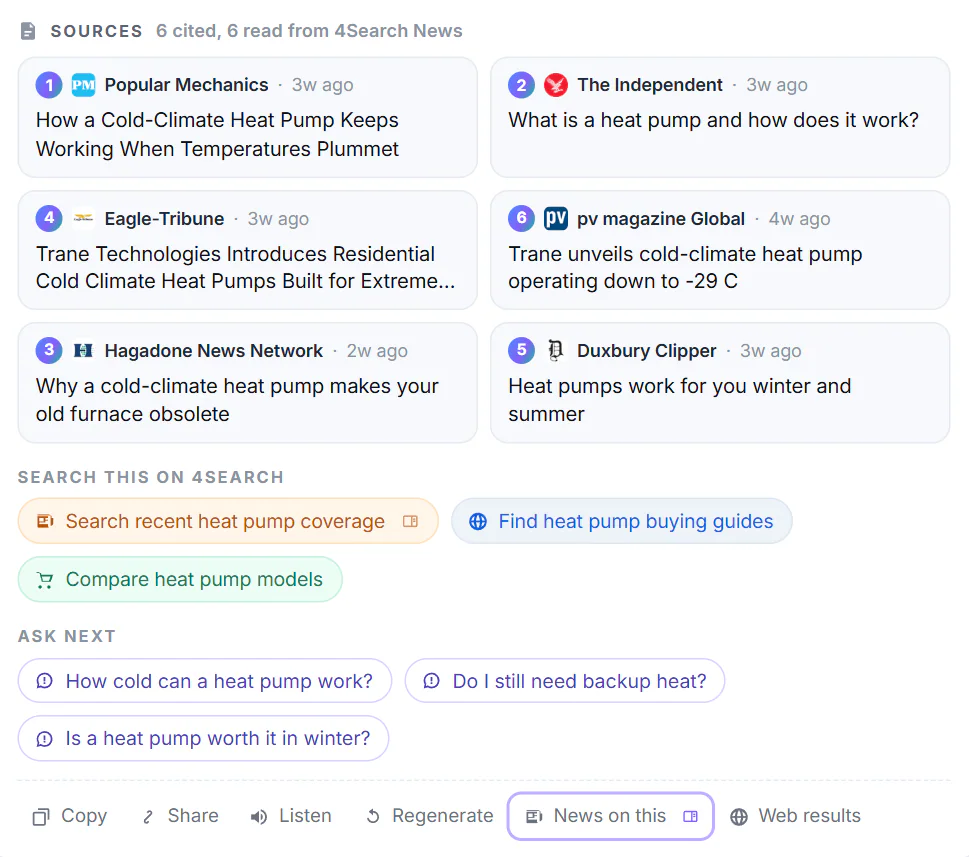
The buttons are the last row under the answer (5).
- 1How many articles were cited and read
- 2A source: select it to open the article
- 3Search the same words on this site
- 4Questions to ask next
- 5Copy, share, listen, regenerate
#Under each answer
| Button | What it does |
|---|---|
| Copy | Copies the answer as text with Markdown formatting, followed by the list of the sources it cited and their addresses. |
| Share | Copies a link that asks the same question in AI Mode. On a phone it opens your device's share menu instead. The link carries the question, not the answer: whoever opens it gets a new answer. |
| Listen | Reads the answer aloud with a voice built into your device, without sending the text anywhere. Select it again (Stop) to stop. It is missing in browsers that cannot read aloud. |
| Regenerate | Asks the same question again for a new answer, which replaces the last one. Only on the latest answer. It counts as a message. |
| News on this | Opens the News page with the search the answer was built from. |
| Web results | Opens your question as a Web search. |
#Edit your last question
Under your latest question, select Edit. The question goes back into the message box, with a note: "Editing your last question. Sending replaces it and its answer." Change it and press Enter, or select Cancel (or press Esc) to leave it as it was. The edited question counts as a new message.
#In the message box
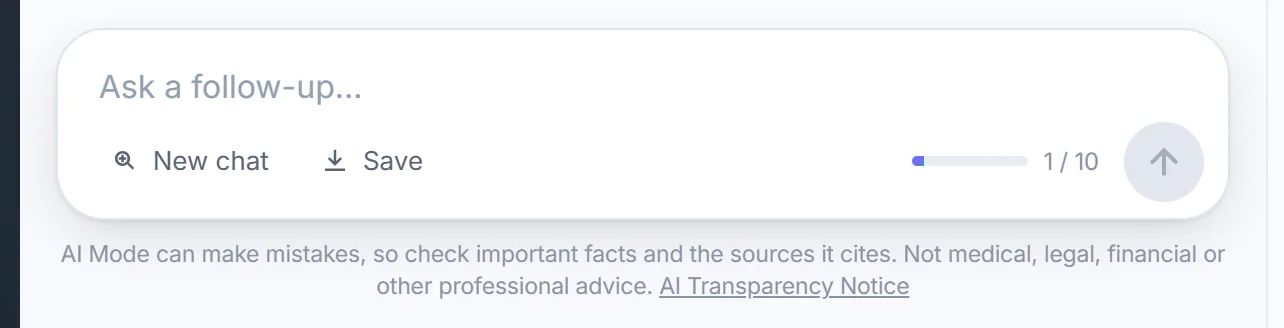
The message box after the first answer.
- 1Type a follow-up here
- 2New chat
- 3Save the chat as a file
- 4Messages used: 1 of 10
- 5Send
- New chat clears the conversation and starts again, with the message count back at 0.
- Save downloads the whole chat as a Markdown text file to your device, named after your first question. It appears once the chat has a message. The file ends with a reminder that AI Mode can make mistakes.
- The counter shows the messages used out of 10.
- The send arrow turns into a square while an answer is being written; select it to stop.
#When an answer stops short
- Stopped before the answer finished means you stopped it. Regenerate it if you want the whole answer.
- The answer was cut off, so it may be incomplete means it ran too long or the connection dropped. Select Continue to have it carry on; that sends a message.
- An answer that failed says why and offers Try again. See When an AI answer does not appear.
#Common questions
Which buttons use up one of my 10 messages?
Anything that asks for a new answer: sending a question, Regenerate, an edited question, Continue, and Ask AI on a result card. Copy, Share, Save, Listen and the search buttons do not.
Where does Save put the file?
Wherever your browser saves downloads. It is a plain text file with Markdown formatting, which any text editor or notes app can open.
Listen says there is no voice. What can I do?
Your browser has no voice installed on the device for the page's language. Install one in your device's speech settings, or try another browser.